I recently had a requirement to automate the registration of vCloud Usage Meter (UM) to the VMware Commerce Portal (VCP). Manish Jha has a great blog post that really helped in my investigation. The process is now changed, for example UM is registered via the Cloud Partner Navigator (CPN) as opposed to VCP. VMware have a blog post here goes explains the CPN process.
This is the order of API commands that allowed me register UM and register the VMware Product VMware Cloud Director Availability (VCDA).
Create a UM Login Session
Method: POST

URL: https://<usage-meter-fqdn>:8443/api/v1/login

Headers:
Content-Type: application/json

Payload:
{
"user":"usagemeter",
"password":"usage meter_password"
}
We need to get the string of sessionid from output response. Further API calls will be authenticated using this string. Below is an example of the response output.
{
"data_usage_acceptance": true,
"http_proxy": false,
"alert_email": false,
"sessionid": "UmSIDa2EtEbyoot2zwYCcLmmgVscVGw2C4tk1UZSU6yzPyV0"
}
Get the UM UUID for Registration
Method: GET

URL: https://<usage-meter-fqdn>:8443/api/v1/agent_info?um_uuid=true

Headers:
Content-Type: application/json
sessionId: session_id
From the response output the UUID is displayed.
Generate a access token from CPN
In order to generate an access token a refresh token needs to be created on the CPN portal. This is an exact from the VMware blog post mentioned earlier.
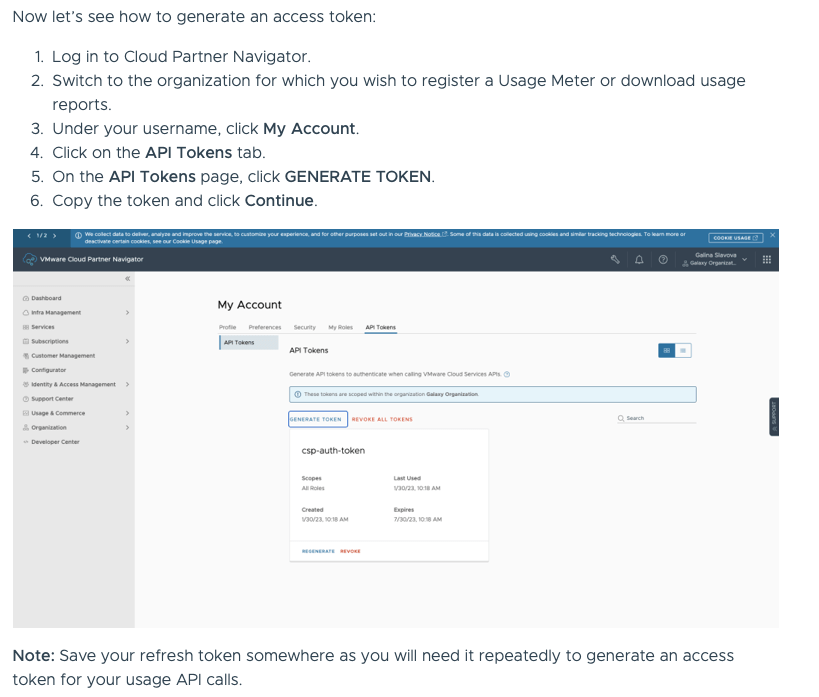
Method: POST

URL: https://console.cloud.vmware.com/csp/gateway/am/api/auth/api-tokens/authorize

Headers:
Content-Type: application/x-www-form-urlencoded
Content-Type: application/json

data-urlencode:
'refresh_token=refresh_token'
We need to get the string of access_token from output response. Further API calls will be authenticated using this string.
Register UM UUID with VCP via CPN
Below are the required parameter to register UM with VCP.
| agentId | This is the UM UUID |
| connectivityMode | The mode in which UM will report data – ONLINE |
| contractNumber | The number of the VCPP contract with which you will register your UM |
| label | The name of the Usage Meter |
| meteringMode | The mode in which the data will be reported to VCP – TEST mode reports are not to be billed, PRODUCTION mode reports are to be billed. |
| version | The UM version for example. Note: do not use 4.x |
Method: POST

URL: https://ums.cloud.vmware.com/usage/api/v1/agent-registrations

Headers:
Content-Type: application/json
Authorization: Bearer access_token

Payload:
{
"agentId": "27ecc293-1baf-44a9-be8d-ccac86584212",
"connectivityMode": "ONLINE",
"contractNumber": "12345678",
"label": "um.scamall.blog",
"meteringMode": "TEST",
"version": "4.6"
}
Accept Data Usage on UM Appliance
Method: POST

URL: https://<usage-meter-fqdn>:8443/api/v1/data_usage_acceptance

Headers:
Content-Type: application/json
sessionId: session_id

Payload:
{
"accepted":true
}
Set Network Connection Configuration on UM Appliance
In this step we are configuring direct internet access from usage meter to VMware. If in your internet connectivity is via proxy, your payload will change accordingly.
Method: PUT

URL: https://<usage-meter-fqdn>:8443/api/v1/test_proxy

Headers:
Content-Type: application/json
sessionId: session_id

Payload:
{
"type":"none",
"host":"direct"
}
Register VCDA with UM
The VCDA root user account is the only account that can successfully register VCDA to UM.
Method: POST

URL: https://<usage-meter-fqdn>:8443/api/v1/product

Headers:
Content-Type: application/json
sessionId: session_id

Payload:
{
"host": "vcda.scamall.blog",
"password": "root_password",
"port": 443,
"productType": "VCAV",
"user": "root"
}
Response Output
{
"port": 443,
"lastChanged": 1687467688814,
"host": "vcda.scamall.blog",
"active": true,
"metered": false,
"id": 1,
"user": "root",
"productType": "VCAV",
"status":
 {
 "code": "Warn",
 "lastChanged": 1687467688814,
 "text": "Please accept certificate"
 }
}
Accept VCDA Certificate
Method: PUT

URL: https://<usage-meter-fqdn>:8443/api/v1/accept_certificate

Headers:
Content-Type: application/json
sessionId: session_id

Payload:
{
"certificateId": "vcda.scamall.blog:443",
"accepted": true,
"productType": "VCAV",
"productId": 1
} Blag Scamall
Leave a comment