Designing any VCDA architecture, a common request is for the replication traffic to be 100% segregated from from the management traffic. Atanas Stankov and Nikolay Patrikov have an excellent white paper VMware Cloud Director Availability Multi-NIC Setup that explains the setup very well. What has changed is that all the multi-NIC configuration can be easily achieved from the UI which is what I want to share in this post. In this example, the Cloud Tunnel Appliance and Cloud Replicator Appliance will have two NICs but the Cloud Replication Management Appliance will still have a single NIC as illustrated in the diagram below:
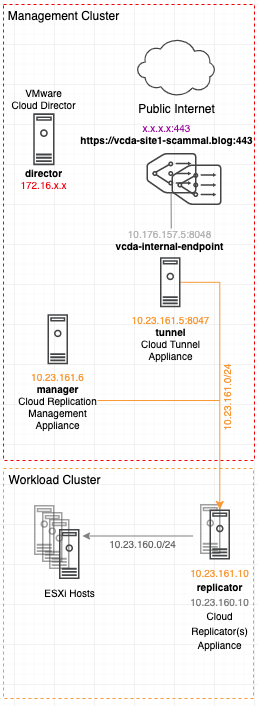
Before we start here is an overview of the networks.
Management Network
All appliances in a VCDA site communicate via the management network. In this setup the management network is attached to NIC1 (ens160) on all VCDA appliances.
Replicator Network
This is the network between the Replicator Appliance and the ESXi hosts. This network is attached to NIC2 (ens192) on all Replicator Appliances.
Tunnel Network
This the network between the Tunnel Appliance and the Internet. This network is attached to NIC2 (ens192) on the Tunnel Appliance.
Appliance Deployment
VCDA Provider OVA Deployment & Configuration
For this example the Cloud Replication Management Appliance and Cloud Tunnel Appliance are deployed in the Management cluster and the Cloud Replicator Appliance is deployed in the Workload cluster as showed in the architecture diagram above.
All appliances are deployed using the same OVA – VMware Cloud Director Availability Provider Appliance.
A VCDA site is made up of a single Cloud Replication Management Appliance, a single Cloud Tunnel Appliance and a single or multiple Cloud Replicator Appliances.

Deploying a VCDA appliance the following convention can be followed:
| OVA Property | Selection |
|---|---|
| Virtual Machine Name | Manager |
| Location | Management cluster |
| Deployment Configuration | Select role for example Cloud Director Replication Management Appliance |
| Storage | Select datastore |
| Network | VCDA mgmt portgroup |
Customize Section:
| Customize Template | Selection |
|---|---|
| Root Password | Set a password (Note: this will need to be reset on initial login) |
| NTP Server | AD servers |
| Hostname | Manager |
| Address | Mgmt network address for example 10.44.45.3/24 |
| Gateway | Mgmt network gateway address for example 10.44.45.1 (Note: Ensure No subnet mask is added for gateway) |
| MTU | 1500 |
| DNS Servers | AD servers |
| Search Domain | Domain name |
Follow the above steps for all three appliances, Cloud Replication Management Appliance, Cloud Tunnel Appliance and Cloud Replicator Appliance. Once deployed login to the Cloud Replication Management Appliance and run the initial wizard.

Enter the license key and proceed to site details.
| Site Details | Selection |
|---|---|
| Site Name | vcda-site1-scamall |
| Public Service Endpoint | https://vcda-site1-scammal.blog:443 |
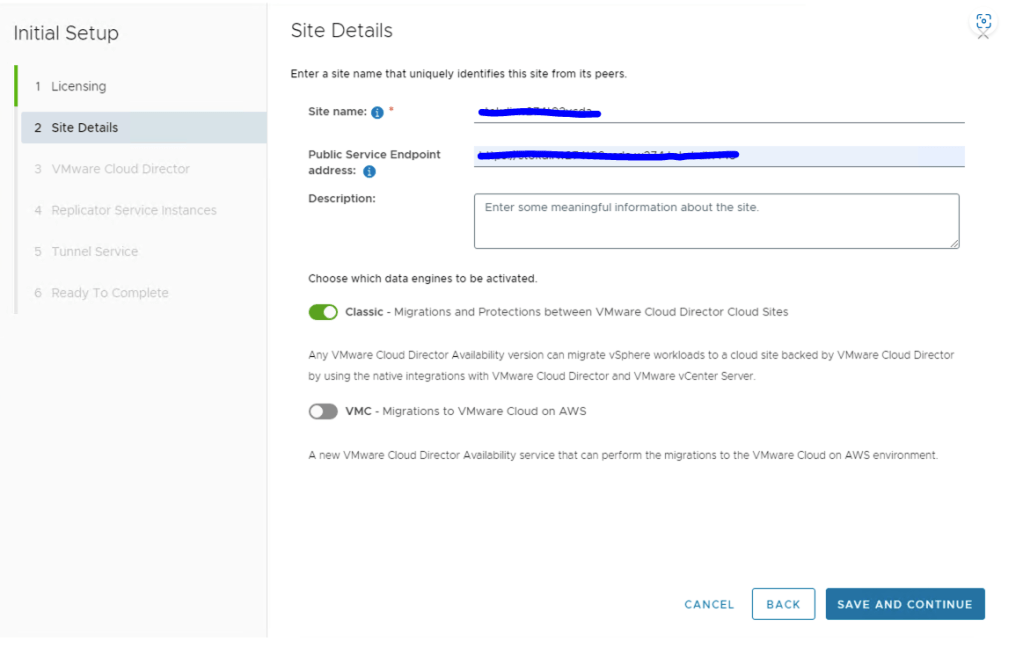
Enter the Cloud Director URL and provide the Cloud Director provider credentials. Note that VCDA always uses the Director API login method:
| VMware Cloud Director | Selection |
|---|---|
| VMware Cloud Director endpoint URL | director-scamall.blog/api |
| VMware Cloud Director user name | administrator@system |

At the next section the Replicator Service Instances Lookup Service address will be the same for all appliances. The lookup service address is the the Management vCenter address. The replicator DNS name should be provided along with the root credentials.
| Replicator Service Instances | Selection |
|---|---|
| Lookup Service address | https://vc-scamall.blog:443/lookupservice/sdk |
| Replicator API endpoint | https://replicator-scamall.blog:8043 |
| SSO username | administrator@vsphere.local |
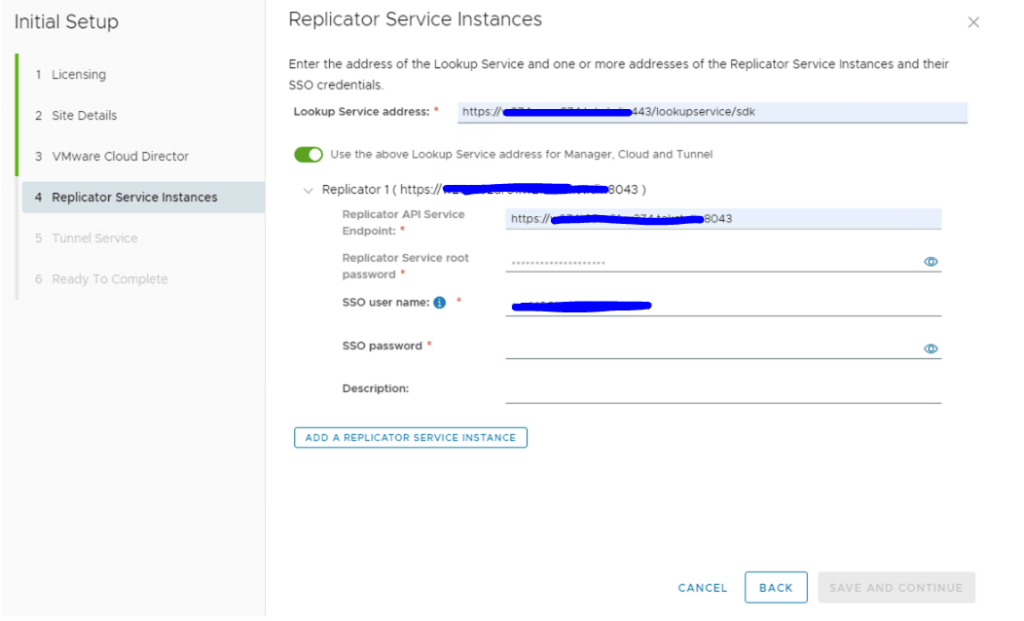
At the next section enter the Cloud Tunnel DNS name for the Tunnel Service address:
| Tunnel Service | Selection |
|---|---|
| Tunnel Service address | https://tunnel-scamall.blog:8047 |
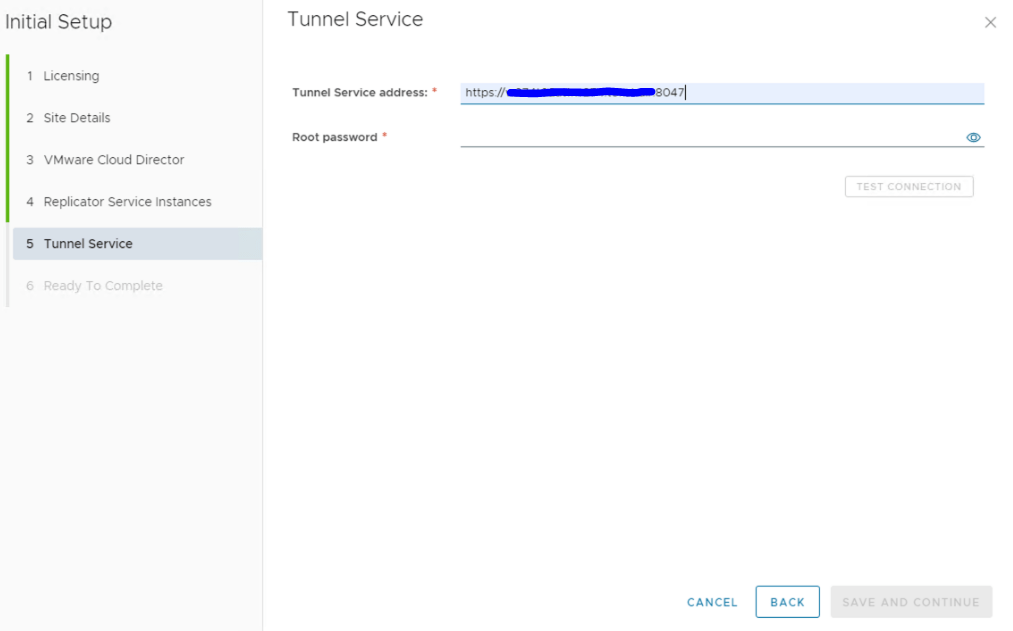
Once completed you are redirected to the Cloud Service which is the UI for VCDA. Two settings I like to be modified out of the box.
- Default Replication Owner
- Certificate
- Accessible Provider VDCs
Default Replication Owner
A Tenant can only view replications owned by the Tenant. If a System Administrator sets up a replication for a Tenant, the System Administrator by default would own this replication therefore the Tenant would not see it. Changing this setting to Tenant Organization ensures the Tenant will always be able to view replications configured in their Organization.
Certificate
The VCDA public certificate should be applied. The certificate needs to be a .pfx file therefore in PKCS#12 format.
Accessible Provider VDCs
By default all Provider VDCs associated with Cloud Director are accessible by the VCDA site. This setting will suit most deployments, but I want to highlight it is possible to have a VCDA per Provider VCDA within a single Cloud Director. For example if Director had PVDCs in multiple DCs, VCDA per PVDC ensures the replicator in that DC is used for replication and not a replicator in another DC.
See below for where these settings are located:

Multi-NIC Setup
To segregate the replication traffic from the management traffic both the Cloud Tunnel Appliance and Replicator appliance(s) will need a second NIC.
Cloud Tunnel Appliance
Within vCenter add an additional VMXNET3 NIC to the Tunnel appliance. The Tunnel needs to be attached to the vcda-tunnel port group for example.
The network is configured from the Tunnel UI for example https://tunnel-scamall.blog:8047
The new NIC is ens192, the management NIC is ens160. Static routes need to be assigned to ens160 NIC before configuring NIC ens192. Static routes are needed for the following subnets routed to the management default gateway.
- AD Zone 1
- AD Zone 2
- Cloud Director
- Jumphosts
Once the static routes are applied remove the default gateway from ens160. Now apply the IP settings on NIC ens192. With both NICs configured ensure the Traffic Control Tunnel address is using the management IP address applied on ens160.
| Traffic Control | Selection |
|---|---|
| Tunnel address | ens160 |

Cloud Replicator Appliance
Within vCenter add an additional VMXNET3 NIC to the Replicator appliance. The Replicator needs to be attached replicator network portgroup.
The network is configured from the Replicator UI for example https://replicator-scamall.blog:8043
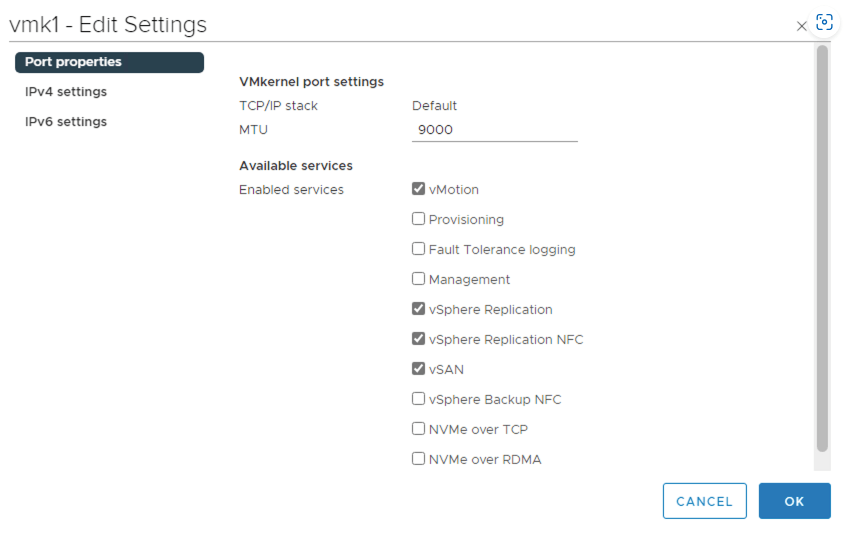
The new NIC is ens192, the management NIC is ens160. Configure NIC ens192 with an IP address and no default gateway. A static route for the ESXi hosts is required. The ESXi hosts will also need a static route to reach the replicator subnet. The ESXi vmk associated with this static route for example vmk1 needs vSphere Replication and vSphere Replication NFC services enabled.
With both NICs configured ensure the Traffic Control Management address is using the management IP address applied on ens160. The NFC and LWD address should use the replicator IP applied on ens192.
| Traffic Control | Selection |
|---|---|
| Management Address | ens160 |
| NFC Address | ens192 |
| LWD Address | ens192 |

Cloud Pairing
The VCDA site is now deployed and ready for new Cloud Pairings from on-premises and other Cloud sites.
 Blag Scamall
Leave a comment