I had the pleasure of carrying out a few migrations from standalone VMware Chargeback to Aria Operations so I want to share my experience along with some tips.
Before you start, it is important that you have the correct minimum product versions as listed below.
- Aria Operations – 8.16 (I was using 8.16.1)
- VCD Management Pack – 8.16
- VCD – 10.5.1
- Chargeback 8.16
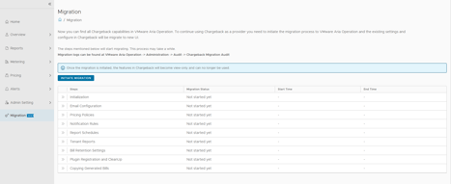
Tip 1: Once upgraded to Chargeback 8.16 there is a new Migration Tab. Initiate Migration tab will remain greyed out if there are any VCDs connected to Aria Ops with a version less than 10.5.1
Tip 2: If you forget to upgrade the VCD Management pack to 8.16 you will be missing the ‘Manage Registrations’ option for VCD adapters.
Initiate Migration
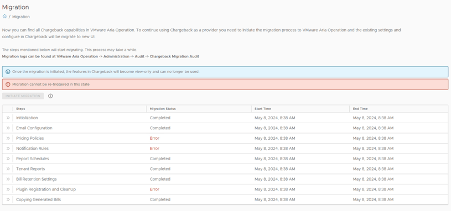
From the screenshots below, I had errors with my migrations for Pricing Polices, Notification Rules, Plugin Registration and cleanup. I had the same errors on all migrations I carried.
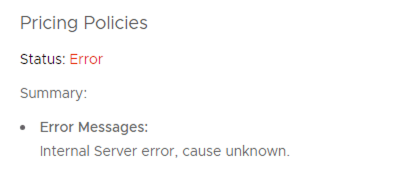
Pricing polices had an Error Message:
Internal Server error, cause unknown
I suspect this might be due to fact that I had no pricing policies.
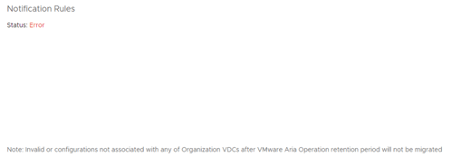
Notification Rules had no Error message but a Note:
Note: Invalid or configurations not associated with any of Organisation VDCs after VMware Aria Operation retention period will not be migrated.
Again, I had no notification rules so I suspect this might be the cause.
Plugin Registration and cleanup, some failed and some skipped so none actually migrated. I was able to register manually via Aria Operations and all worked fine as the note suggested:
4/9 VCD endpoint registrations with VMware Aria Operations Plugin failed
5/9 VCD endpoint registrations with VMware Aria Operations Plugin skipped
Note: Plugins not migrated successfully should be registered from VMware Aria Operations explicitly.
Step 1
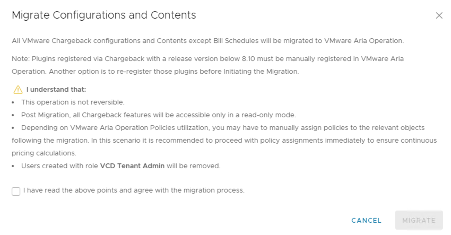
Step 2
Step 3

Chargeback Setup in Aria Operations
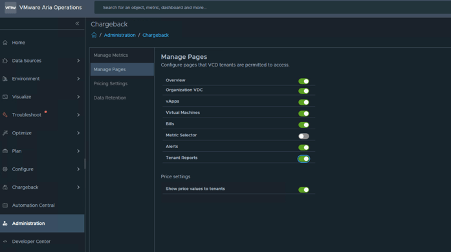
Out of the box, no metrics are activated and all pages are disabled so these need to be modified.
Manage Metrics
- Login to Aria Operations UI
- Administration > Chargeback > Manage Metrics
- Select Object Type, for example vCenter > Virtual Machine
- Use the Select All icon, ACTIONS > Activate
- Select Save
The above steps should be carried out for all VMware Cloud Director Adapter and vCenter object types so that all available metrics are activated.

Manage Pages
- Login to Aria Operations UI
- Administration > Chargeback > Manage Pages
- Enable all pages
- Select Save
Note: My screenshot I have excluded Bills and show price values to tenants as I am not using Chargeback for billing in this setup.
Manage Registrations
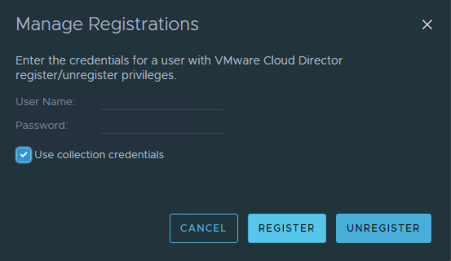
Remember if the VCD Management pack is older than 8.16 there will be no Manage Registration option.
To register the plugin with a VCD adapter.
- Login to Aria Operations UI
- Data Sources > Integrations > Accounts
- Edit the VMware Cloud Director Adapter
- Select Manage Registrations
- Tick Use collection credentials
- Select Register

Publish the Plugin to VCD Organisations
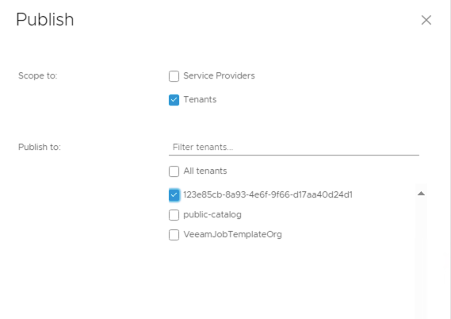
Once the Plugin has been registered, every Organisation that needs access will need the Aria Operations Plugin enabled.
- Login VMware Cloud Director UI
- More > Customize Portal
- Select Aria Operations Plugin and Publish
- Tick the relevant Tenant and select Save

VMware Chargeback Proxy
At the time of writing how to access VMware Chargeback via a Proxy address like the Tenant App Proxy was not well defined.
For Tenants to reach VMware Chargeback, there are two options:
- VCD will act as a proxy for VMware Chargeback
- VCD wil redirect to Aria Operations
VCD will act as a proxy for VMware Chargeback
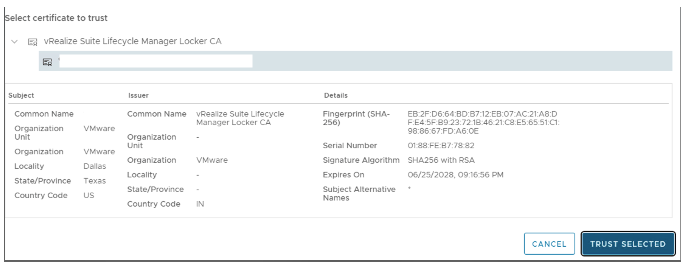
If Aria Operations is not reachable directly from tenants VCD can proxy the requests. To make VCD act as a proxy VCD needs to trust the Aria Operations certificate.
- Login to the VCD UI as a System Administrator
- Administration > Certificate Management > Trusted Certificates
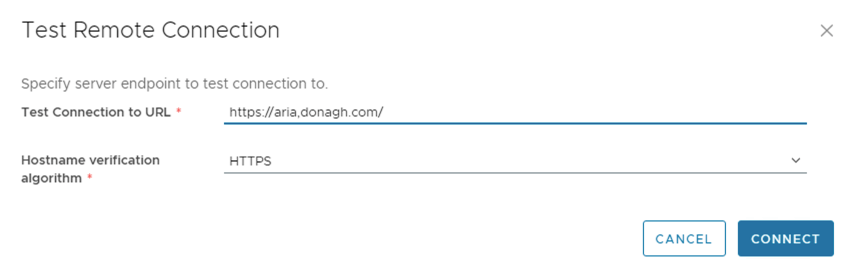
- Select Test Remote Connection
- For Test Connection to URL enter the Aria Operations URL along with https://
- For Hostname verification algorithm select HTTPS
- Select Connect
- A certificate will appear and select Trust Selected
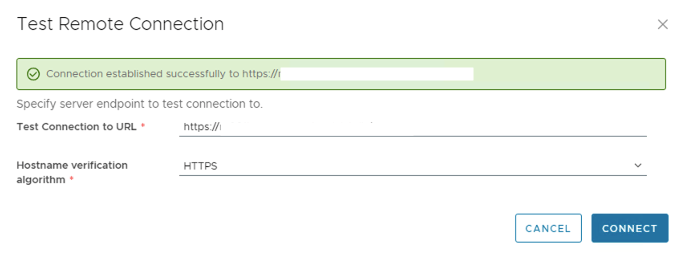
- Select Connect again and a message should appear Connection established successfully
- Select Cancel
VMware Chargeback is now reachable using VCD as a proxy.
VCD will redirect to Aria Operations
If the certificate is not trusted VCD will redirect to Aria Operations. When the Chargeback plugin is registered with VCD the URL used by VCD is defined by the Aria Operations System Access URL. If the field is blank VCD will use the Aria Operations IP addresses.
- Login to Aria Operations UI
- Administration > Global Settings > System Settings > System Access URL
Confirm if VCD is using the proxy or not
To check if you are using the proxy or not. Open your browser developer tools and the Network tab. Open the Operations Manager plugin and search for the request ui/?vcdt= and the request URL will be VCD if you are using a proxy or Aria Operations if you are not.


Cookies
If you decide to use the VCD proxy, there are two important cookies that are used to authenticate the user. It is important to make sure your load balancer is not deleting these cookies. The two cookies are:
- JSESSIONID
- rstd
These cookies are not used if the tenants are going directly to Aria Operations. For me the cookies were being deleted and users were presented with the Aria Operations login page when opening Operations Manager. The login page does not work.

Discovered Issues
Unable to Authenticate
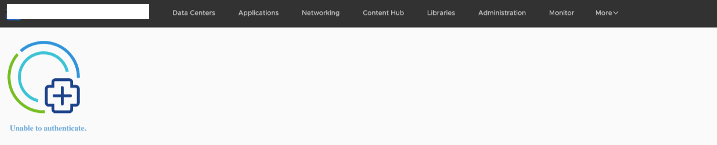
I came across a bizarre issue whereby some Orgs could login fine and some Orgs could not, they were presented with a message Unable to authenticate
Knowing the cookies that were needed I could see the rstd cookie was missing.
I searched for the Org in Aria Operations thinking it might be missing but instead there was a duplicate entry. I suspect the Org was deleted and recreated with the same name. Once I deleted the stale Org, the cookie was back and the users could login again.
- Login to Aria Operations UI
- Environment > Inventory > Objects
- Search the Org with the duplicate entry
- Delete the stale entry



Leave a comment